Today’s tip is all about taking control of your badge notifications — those little red numbers that appear on your app icons. ‌ ‌ ‌ ‌ ‌ ‌ ‌ ‌ ‌ ‌ ‌ ‌ ‌ ‌ ‌ ‌ ‌ ‌ ‌ ‌ ‌ ‌ ‌ ‌ ‌ ‌ ‌ ‌ ‌ ‌ ‌ ‌ ‌ ‌ ‌ ‌ ‌ ‌ ‌ ‌ ‌ ‌ ‌ ‌ ‌ ‌ ‌ ‌ ‌ ‌ ‌ ‌ ‌ ‌ ‌ ‌ ‌ ‌ ‌ ‌ ‌ ‌ ‌ ‌ ‌ ‌ ‌ ‌ ‌ ‌ ‌ ‌ ‌ ‌ ‌ ‌ ‌ ‌ ‌ ‌ ‌ ‌ ‌ ‌ ‌ ‌ ‌ ‌ ‌ ‌ ‌ ‌ ‌ ‌ ‌ ‌ ‌ ‌ ‌ ‌ ‌ ‌ ‌ ‌ ‌ ‌ ‌ ‌ ‌ ‌ ‌ ‌ ‌ ‌ ‌ ‌ ‌ ‌ ‌ ‌ ‌ ‌ ‌ ‌ ‌ ‌ ‌ ‌ ‌ ‌ ‌ ‌ ‌ ‌ ‌ ‌ ‌ ‌ ‌ ‌ ‌ ‌ ‌ ‌ ‌ ‌ ‌ ‌ ‌ ‌ ‌ ‌ ‌ ‌ ‌ ‌ ‌ ‌ ‌ ‌ ‌ ‌ ‌ ‌ ‌ ‌ ‌ ‌ ‌ ‌ ‌ ‌ ‌ ‌ ‌ ‌ ‌ ‌ ‌ ‌ ‌ ‌ ‌ ‌ ‌ ‌ ‌ ‌ ‌ ‌ ‌ ‌ ‌ ‌ ‌ ‌ ‌ ‌ ‌ ‌ ‌ ‌ ‌ ‌ ‌ ‌ ‌ ‌ ‌ ‌ ‌ ‌ ‌ ‌ ‌ ‌ ‌ ‌ ‌ ‌ ‌ ‌ ‌ ‌ ‌ ‌ ‌ ‌ ‌ ‌ ‌ ‌ ‌ ‌ ‌ ‌ ‌ ‌ ‌ ‌ ‌ ‌ ‌ ‌ ‌ ‌ ‌ ‌ ‌ ‌ ‌ ‌ ‌ ‌ ‌ ‌ ‌ ‌ ‌ ‌ ‌ ‌ ‌ ‌ ‌ ‌ ‌ ‌ ‌ ‌ ‌ ‌ ‌ ‌ ‌ ‌ ‌ ‌ ‌ ‌ ‌ ‌ ‌ ‌ ‌ ‌ ‌ ‌ ‌ ‌ ‌ ‌ ‌ ‌ ‌ ‌ ‌ ‌ ‌ ‌ ‌ ‌ ‌ ‌ ‌ ‌ ‌ ‌ ‌ ‌ ‌ ‌
View in Web Browser

🤙 Here's another Daily Swipe

Tom here with today’s tip, and this one’s all about taking control of your badge notifications, those little red numbers that appear on your app icons.


You might not realise this, but badge notifications can also have a small impact on your battery. And more broadly, a lot of the settings that affect battery life can be confusing or misunderstood.


That’s exactly why I’ve created iPhone Battery Made Easy, a short, practical video course that shows you what actually matters, what doesn’t, and what to change to get better day-to-day performance and long-term battery health.


Tap the button below to take a look.

Get iPhone Battery Made Easy

Tip 09: How to disable Badge notifications per-app


🤔 Imagine this...

You open your iPhone and see red numbers dotted all over your Home Screen. Some of them are helpful, but others just make things feel cluttered. The good news is you can choose exactly which apps show badge notifications and which don’t.


👇 Here's how to do it...

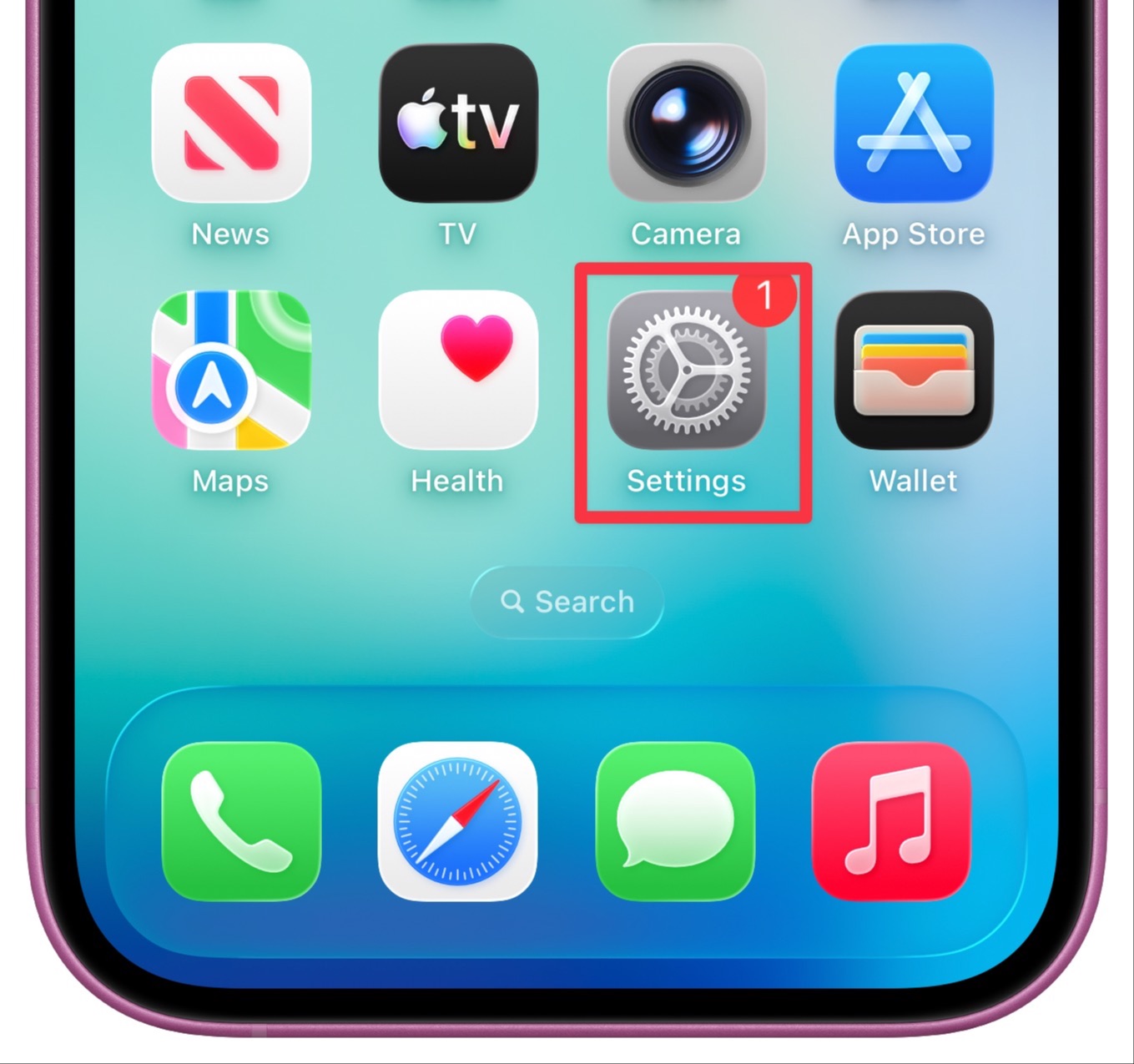
Step 1: Open Settings

Tap the grey gear icon on your Home Screen to open your iPhone’s settings.

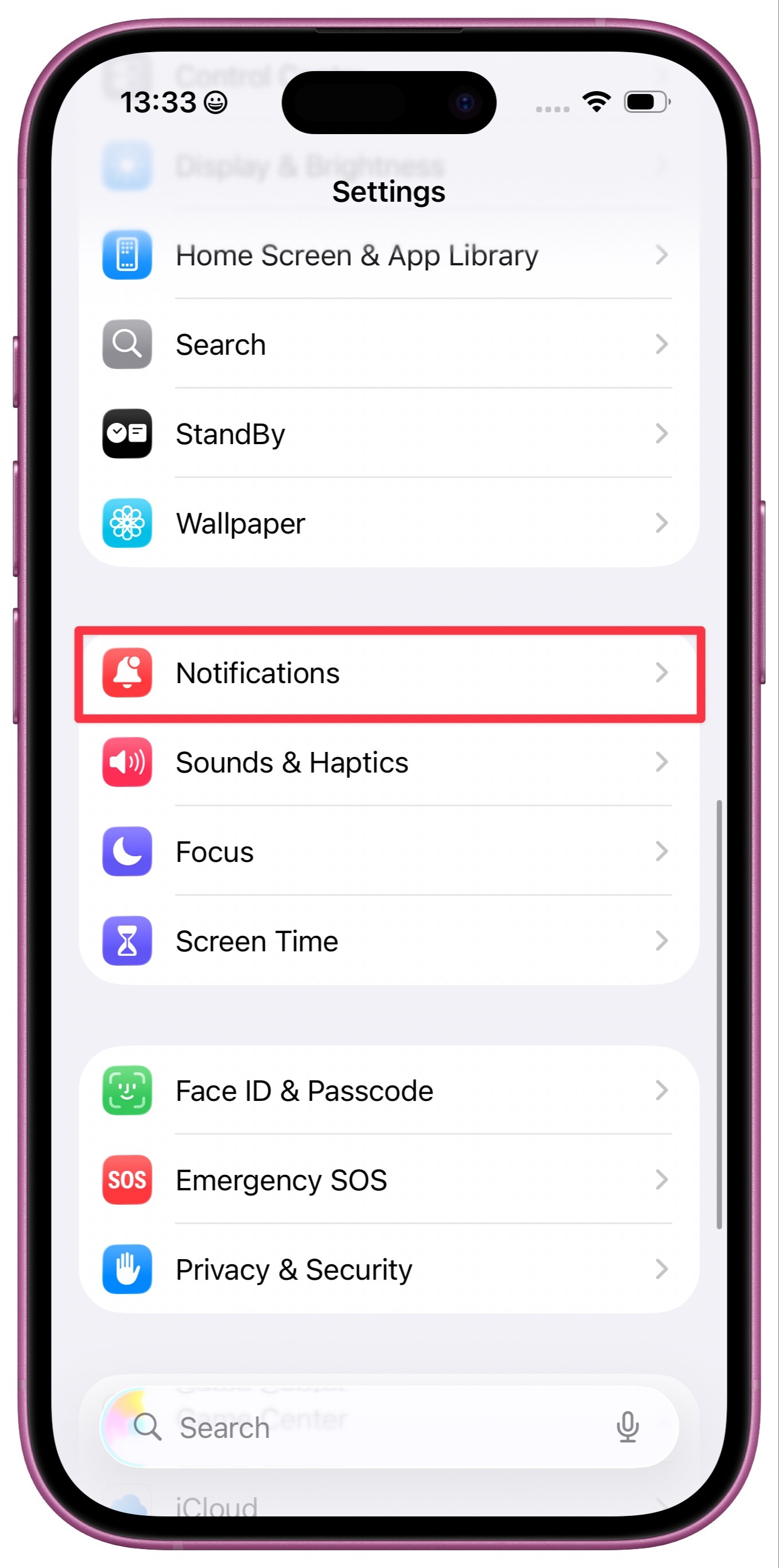
Step 2: Tap Notifications

Scroll down and tap Notifications. This is where you can control how each app alerts you.

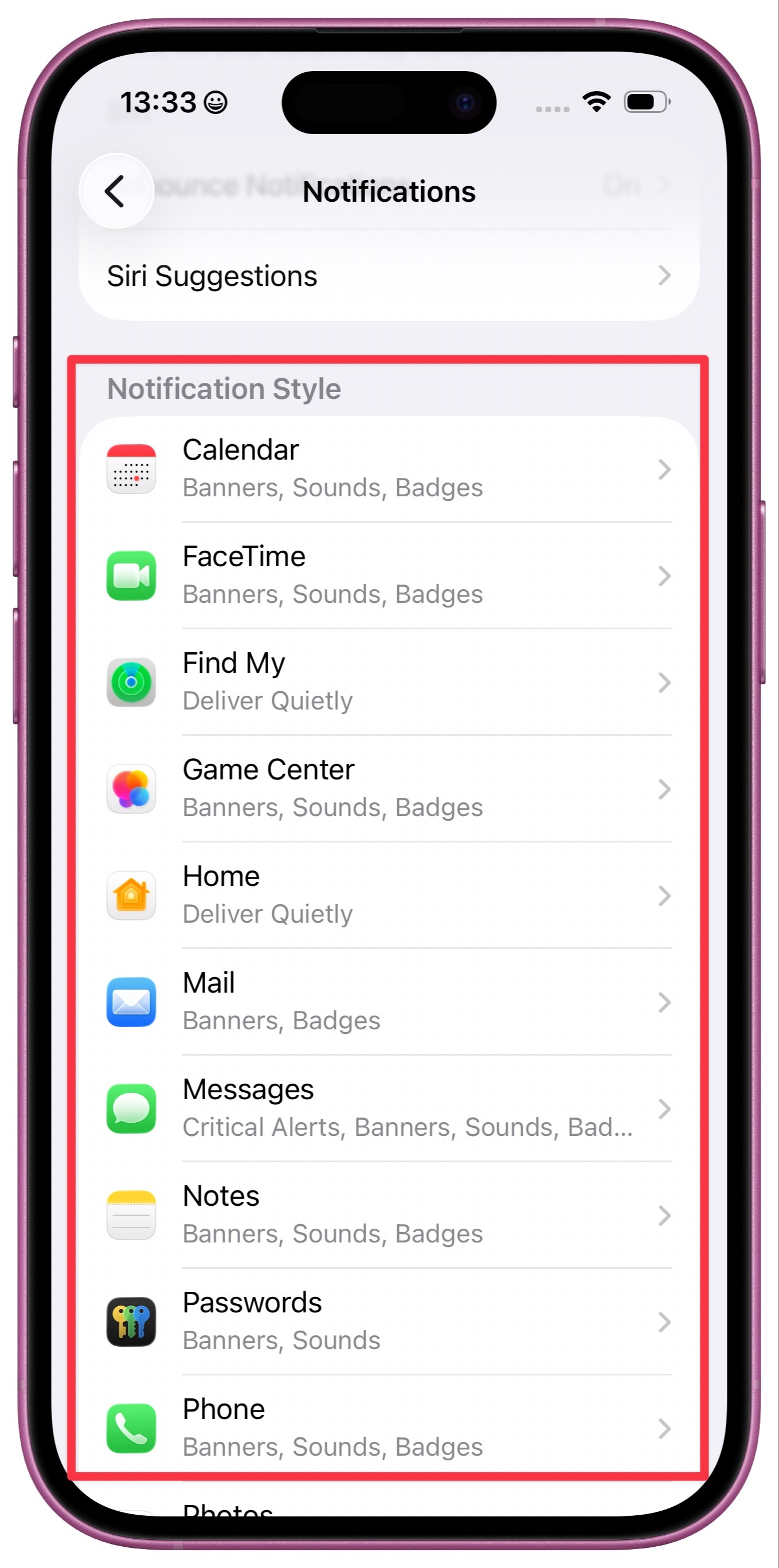
Step 3: Scroll to the Notification Style section

Under Notification Style, you’ll see a list of all your apps that send notifications.

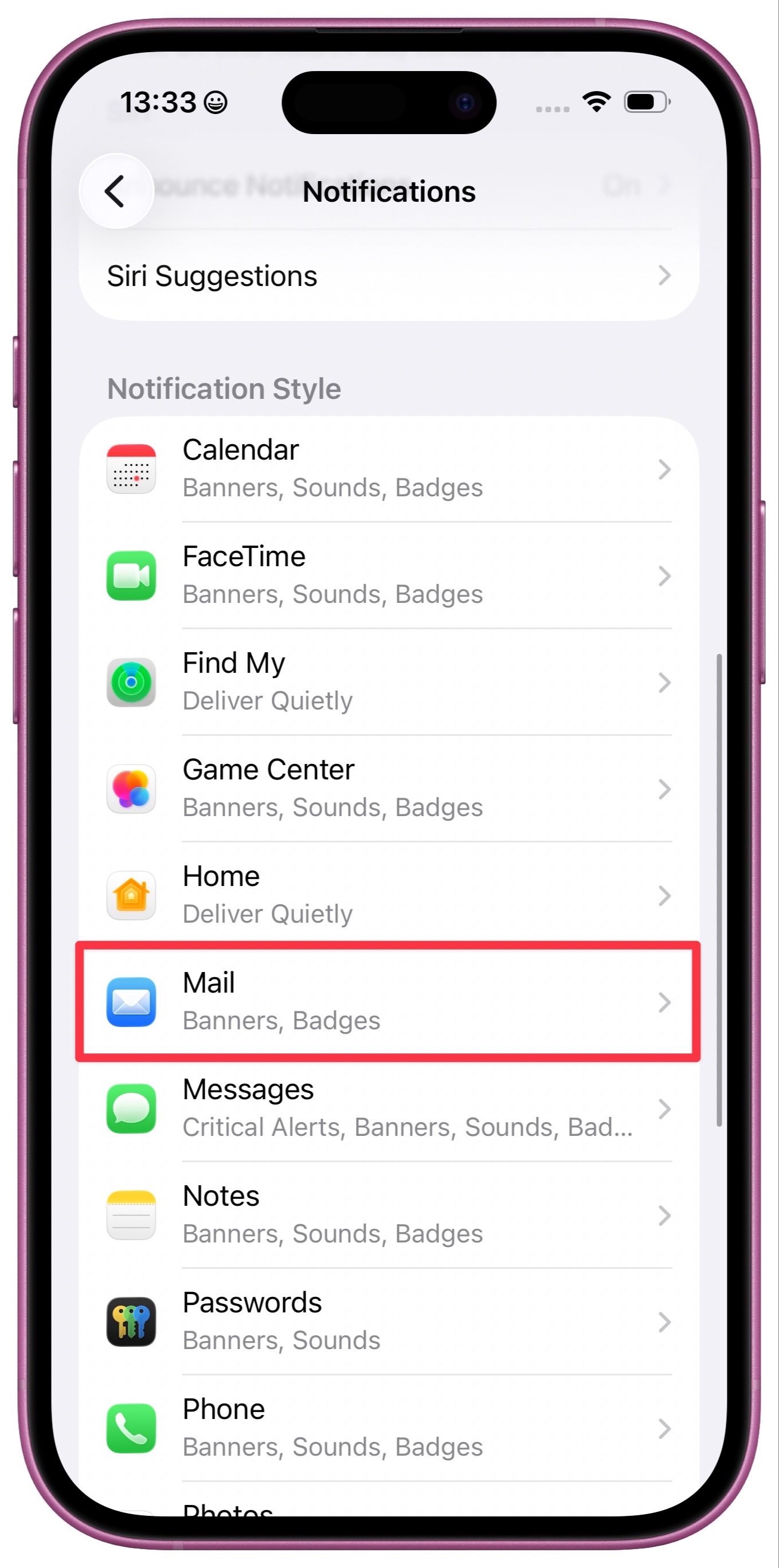
Step 4: Choose an app

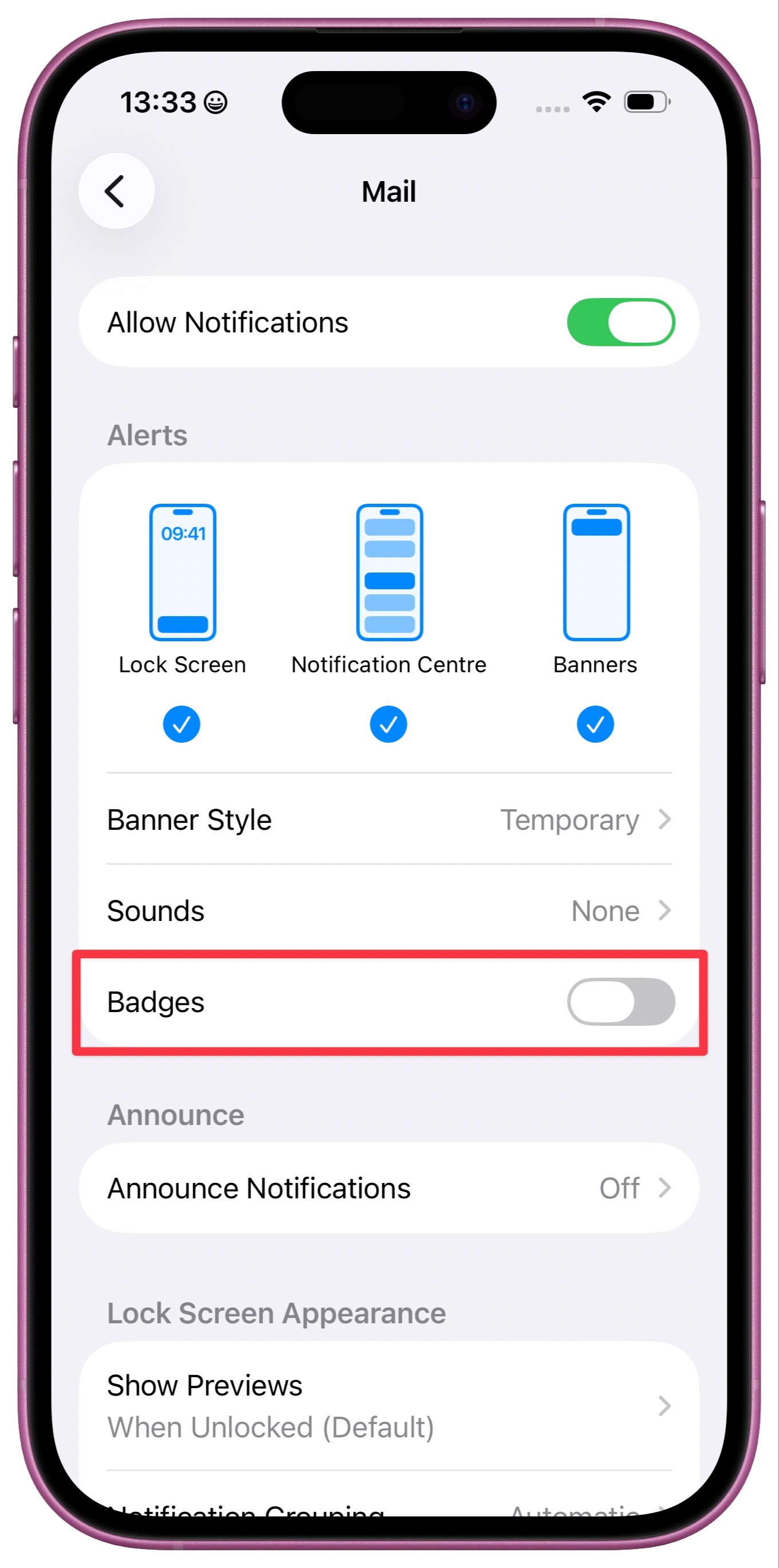
Tap on the app you’d like to change. For example, you might want to keep badges on for Mail but turn them off for Messages or News.

Step 5: Turn off Badges

Find the Badges toggle and switch it off. That’s it — the red number will disappear from that app’s icon, while others stay exactly how you like them.

👉 Ready to REALLY get to grips with your iPhone battery?  

If small annoyances like unwanted badges bother you, you might also find it useful to understand why your battery drains faster than it should, and what actually makes a difference.


That’s exactly what I cover in iPhone Battery Made Easy, a short, practical video course that walks you through the settings that genuinely help, all explained in a clear and easy way.


Tap the image below to get started. 

The Daily Swipe is an independent publication by Proper Honest Tech and is not affiliated with or endorsed by Apple Inc.

Unsubscribe | Sent by Proper Honest Tech
3rd Floor 86 - 90 Paul Street • London, England • EC2A 4NE