Today’s tip is all about downloading a map for offline use. It means you can still get directions even when you’ve got no signal at all. And if you’d like to go further, iPhone Essentials Plus has more than 400 friendly, step-by-step lessons covering everyday iPhone features and shortcuts and much more.
You’re heading somewhere new and suddenly find yourself with no signal, no internet, no directions, and no clue which turn to take next. With this simple trick, you can download an area ahead of time and still get full navigation, even when you’re completely offline.
👇 Here's how to do it...
Step 1: Open the Maps app
Find and tap the Maps app on your Home Screen. It’s the one with the small map icon.
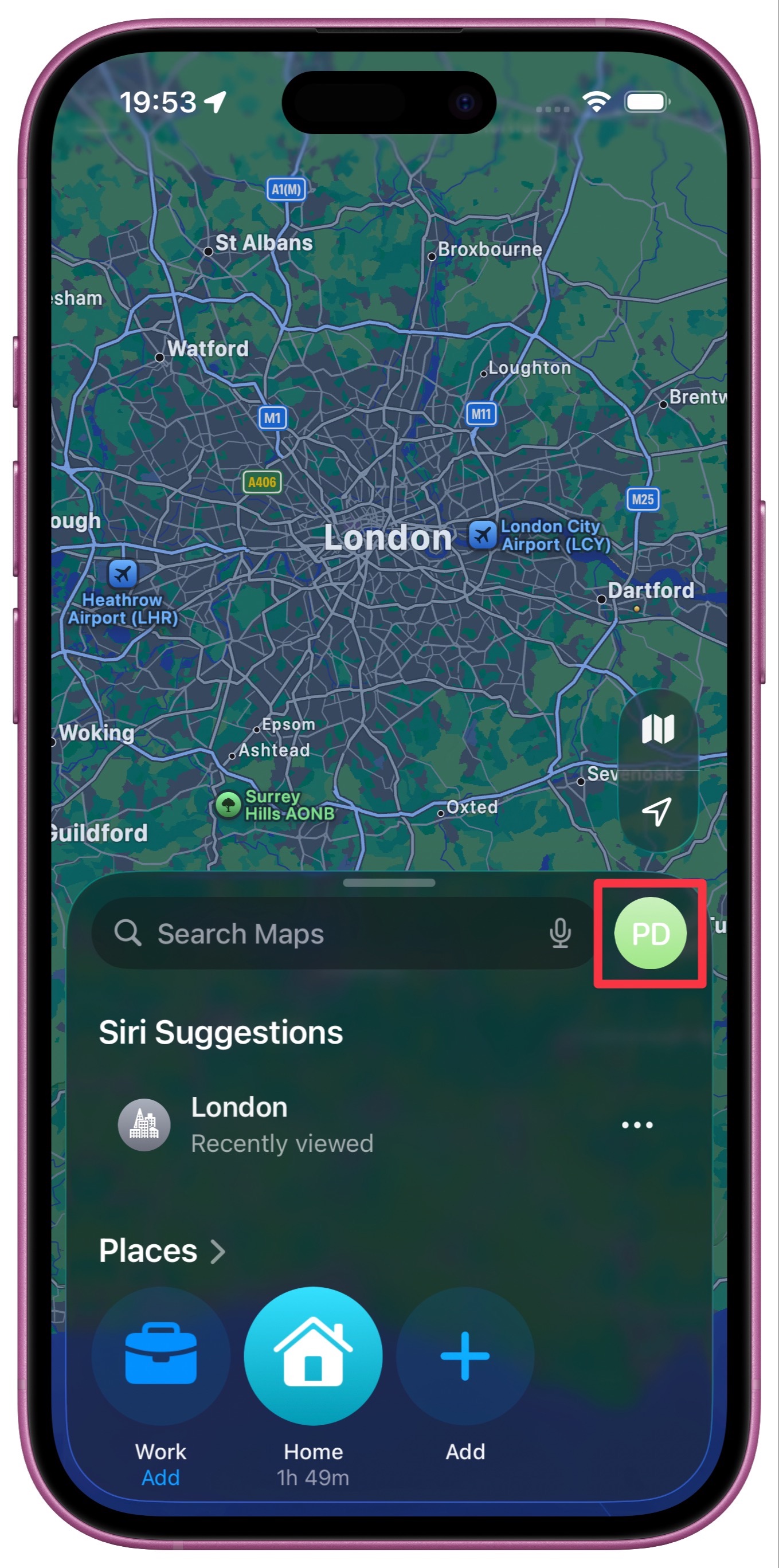
Step 2: Tap your profile avatar
In the top-right corner of the screen, just to the right of the search bar, tap your profile avatar to open your account options.
Step 3: Choose Offline Maps
From the menu that appears, tap Offline Maps.
Step 4: Tap Download New Map
Next, select Download New Map to start the process.
Step 5: Choose your area
You can either tap Current Location to download the area you’re in now, or use the search box to find a different place.
Step 6: Adjust your selection
Use the handles on the rectangle to adjust the area you’d like to download. Make sure it covers everywhere you might need to travel.
Step 7: Tap Download
When you’re happy with the selection, tap Download in the bottom-right corner. The map will be saved directly to your iPhone and ready to use, even without a signal.
"I wish I knew this tip before our last big road trip!"
👉 Like this tip? There’s plenty more inside
One useful tip is a good start, but there’s so much more your iPhone can do. iPhone Essentials Plus gives you more than 400 friendly, step-by-step lessons, including lots more on everyday iPhone features and shortcuts.